
Payments
Use Payments in Omni to view and manage payments for your organisation. This guide covers accessing Payments, choosing the right Payments application, using the Overview tab, creating Payment Links and viewing payer information.
Payments is currently available as a beta product. We are continuing to expand the features and configuration options available directly in the Payments application. As part of onboarding, Modica will help configure your Payments applications, including branding, payment provider connections and other account-level settings. Some changes may currently need to be made by Modica rather than through the customer-facing interface.
Access Payments
If your organisation has been provisioned access to Payments, sign in to Omni and go to Tools → Payments from the navigation menu.
Select a Payments application
Use the application selector at the top of the Payments page to choose the application you want to work with. Most customers are set up with a Sandbox application and a Production application.
If you are still going through onboarding or your Payments setup is in progress, you may initially only see a Sandbox application. Your Production application will be made available once the required production setup and onboarding has been completed.
- Sandbox is for testing. You cannot take real payments through a Sandbox application.
- Production is for real payments and should be used when you are ready to use Payments with customers.
Always check that you have selected your Production application before creating or sharing anything intended to accept real payments.
Overview
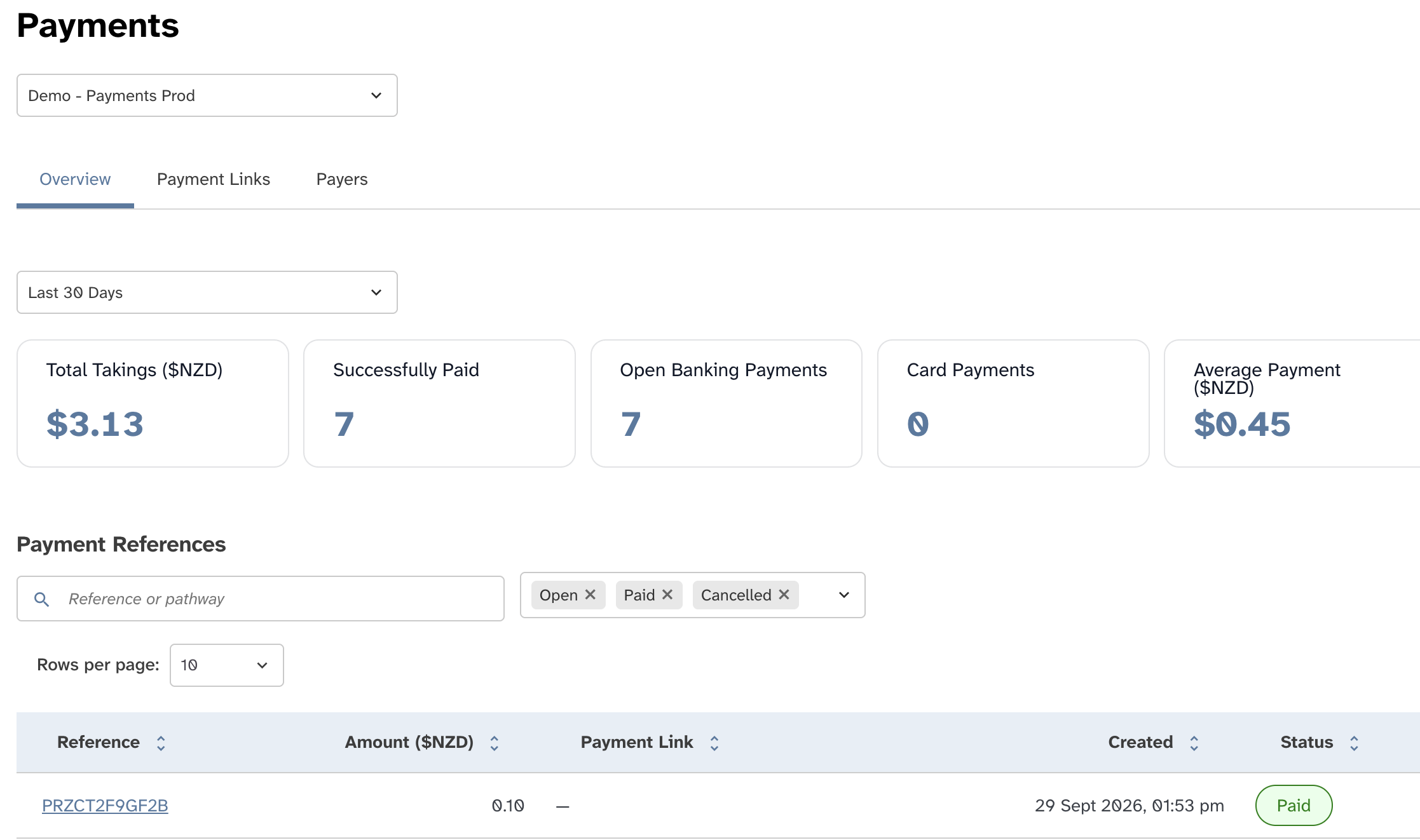
The Overview tab gives you a summary of payment activity for the selected application. You can view activity for the last 7 days, last 30 days or all time.
The summary cards show:
- Total Takings for the selected period.
- Successfully Paid payments.
- Open Banking Payments.
- Card Payments.
- Average Payment amount.
Payment References
The Payment References table shows individual payments, including their reference, amount, payment link, creation date and current status.
Use the search field to find a particular payment by its reference or pathway, or filter the table by payment status.
Payment Links
Payment Links let you create reusable payment links that can accept multiple payments. You can share a link directly, add it to a website or payment button, or use its QR code on digital or printed material.
Before creating a link for real payments, make sure you have selected your Production Payments application. Links created in a Sandbox application cannot accept real payments.
View your Payment Links
Select the Payment Links tab to see links already created for the selected Payments application. From here you can view details such as the link name, amount and status, or select Create Payment Link to create a new one.
Create a Payment Link
When creating a new Payment Link, configure the following settings:
Amount
Enter the amount customers will pay when they use the link.
Name of Link
Give the link a name that makes it easy to identify later, such as Website Payments, October Campaign or Event Donations. This name is for your own reference.
Description (Internal)
Optionally add further information about what the Payment Link is being used for. This is for internal reference.
Link Expiry
Choose how long the Payment Link should remain active. You can set the link to Never expires or specify the number of days before it expires.
Where possible, we recommend setting an expiry so old Payment Links do not remain active longer than needed. For links intended for ongoing use, such as a permanent website payment link, you can select Never expires.
The preview on the right-hand side shows how the payment experience will appear to your customers.
Share your Payment Link
Once the Payment Link has been created, you can copy the link to share it directly or download a QR code.
You can then use the same link across channels such as your website, emails, printed material or campaign collateral.
Payers
The Payers tab gives you access to contact information provided by people who have completed payments through your Payments application.
View payer information
Depending on how your Payments application has been configured, customers can be given the option to provide their contact details and consent to receiving future marketing communications as part of the payment flow.
From the Payers tab, you can view:
- Contact information provided by the payer.
- Whether the payer opted in to marketing communications.
Collecting payer information
Collection of payer information is configured when your Payments application is set up. You can ask Modica to enable contact information collection, or remove this step from the payment experience if you do not need it.
If marketing consent is enabled, only use payer information for marketing where the payer has opted in. The Payers tab records their consent status so you can identify which contacts have provided consent.
Contact the Modica team if you need to change how payer information is collected for your Payments application.
Other Payments products
This guide focuses on the features currently available for customers to manage directly in the Payments interface. Modica also offers Request to Pay and Text to Pay / Text to Donate. Contact the Modica team if you would like to use these products or need help changing your Payments configuration.
As Payments continues to develop, more configuration and management features will become available directly within the application.